 ReelGenie
Create, preview and schedule social posts in ChatGPT.
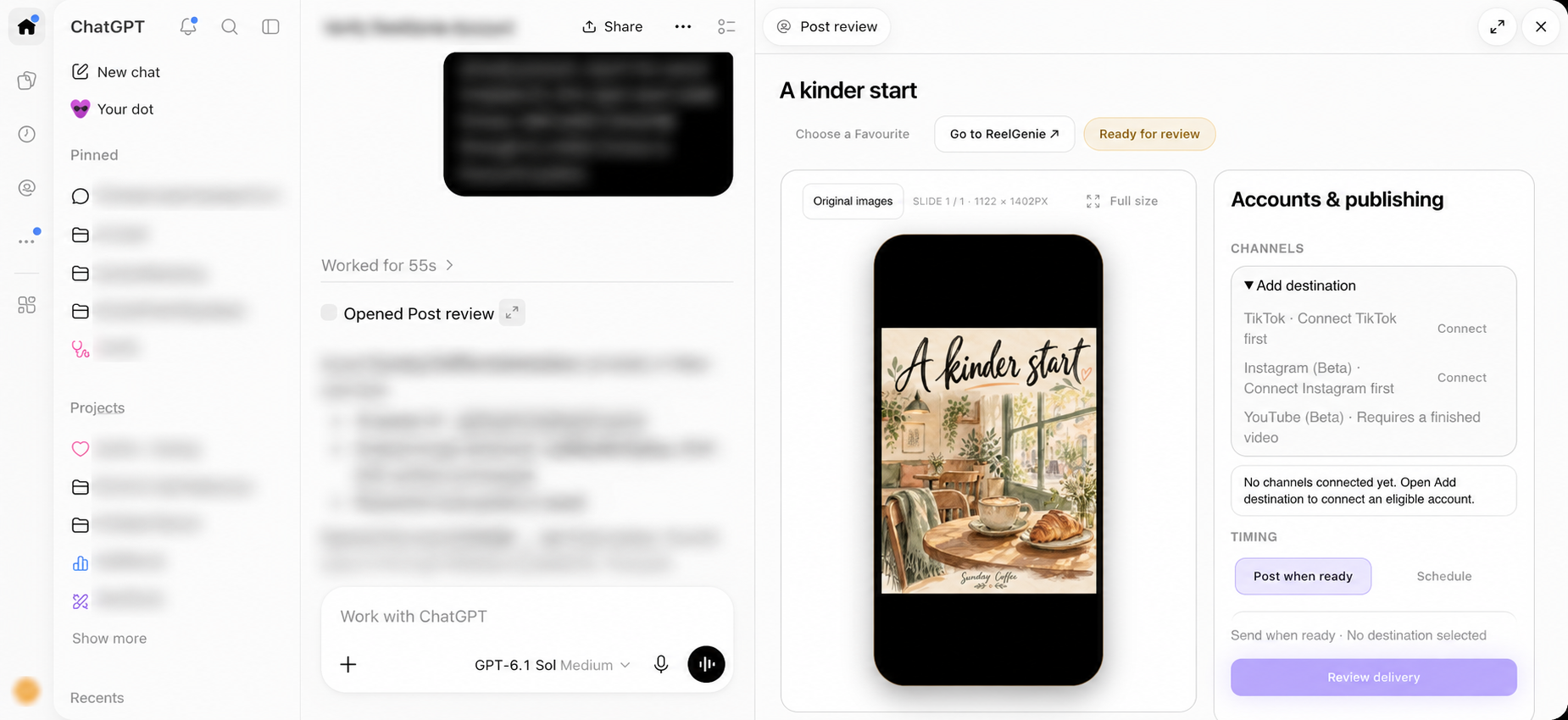
Review social posts in a phone frame inside ChatGPT, choose connected accounts, check the calendar, set a timezone and approve exact publishing or scheduling with ReelGenie.
Updated
Start with the post you intend to send
Open the exact saved post in ReelGenie’s review panel. Check the original image, every carousel slide or the finished video. Read the caption before choosing destinations. You can open full size, move through slides or expand Edit post details if a correction is needed.
The phone preview, connected accounts and timing controls stay together in your workstation. You do not need to download the originals or rebuild the post in a separate publishing form.
Select accounts before checking the calendar
The review surface shows social accounts connected to this post’s brand. Choose the account you actually intend to use, not just the platform name. Supported actions depend on the provider, granted publishing permissions and media format.
If this is your first post and no social account is connected, use Connect to complete account setup in ReelGenie. You can create and review a private post before doing that. Do not interpret an unavailable destination as permission to use a different account.
See the calendar without leaving review
Choose Schedule to reveal date and time controls. Calendar peek shows the current week for selected accounts and helps you spot scheduled or delivered posts. Choose a future date, then check the time you want.
The visible timezone matters. A morning post in Australia/Sydney can fall on a different date elsewhere. Check the complete date, time and timezone shown in the review rather than relying on a phrase such as tomorrow morning alone.
“Prepare this post for Thursday at 9 am Australia/Sydney on my selected Instagram account. Show me the original, caption, account and timing before I approve delivery.”
Selecting a date in the panel prepares the timing. It does not by itself submit a schedule.
Use the final review to make one clear decision
Review delivery brings the exact post, selected destinations, mode and timing into confirmation. Verify the current version and approve only when those details are right. If the caption or media changes, review the revised content again.
Choose Post when ready for the supported immediate path, or Schedule for a future time. Neither button replaces final delivery approval. A new user with no eligible destination should see a disabled delivery action and a clear connection path.
Check the result, not just the queue
A scheduled post is queued. Provider acceptance or completed delivery is a later result. If a delivery needs attention, inspect the reason in ReelGenie rather than assuming it went live. TikTok inbox delivery needs completion in TikTok and should not be described as public publication.
The panel handles the focused review and delivery decision. Go to ReelGenie opens the web console for advanced account management, broader calendar planning and reporting. See the full illustrated journey for sign-in, original saving and Favourite references.
Continue the journey
Your next social post starts in ChatGPT.Turn your ChatGPT ideas into social posts.
From ChatGPT conversation to published post.
Create, preview and schedule social posts in ChatGPT.
Full visual walkthrough · Create a ReelGenie account · Get support