SCHEDULED POST DIDN’T PUBLISH

Did your scheduled post actually go out?

“Scheduled”, “queued” and even “published” don’t always mean a post is on the account. Here is how to check on Instagram, TikTok and YouTube, the usual reasons a scheduled post didn’t publish, and what to do next. The steps work whichever tool you schedule with.

How to check a post

ReelGenie posts finished videos and images to TikTok, Instagram and YouTube after a person approves each one. Forever free: 30 posts a month · 1 brand · 3 connected accounts.

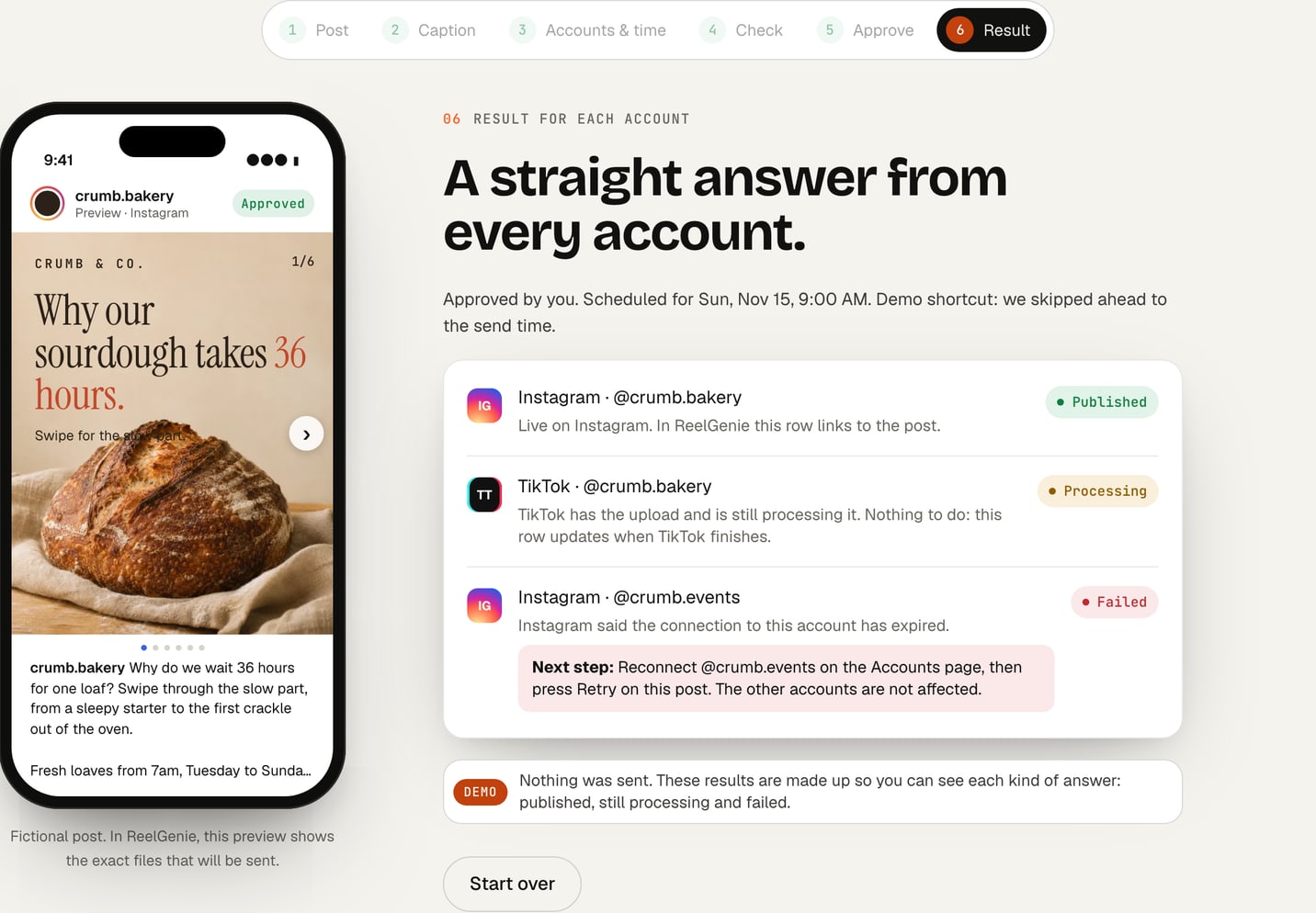
The result step of ReelGenie’s demo after approving a fictional bakery carousel: Instagram @crumb.bakery shows Published, TikTok shows Processing, and a second Instagram account shows Failed because Instagram said its connection had expired, with the next step to reconnect it
The last step of ReelGenie’s no-sign-up demo, with a made-up bakery and made-up accounts: one row for each account, each with its own answer. Nothing in the demo is sent. Select the image to view it full size.

The short answer

Don’t go by a status label alone. Open the account itself and look for the post. If it isn’t there, the cause is almost always one of six things: an expired connection, the wrong time zone, a post nobody approved, a file the platform won’t take, a platform limit, or an outage. TikTok is a special case: a post “sent to your TikTok inbox” is a draft waiting for you, not a published post.

How to check whether a scheduled post went out

  1. Look at the account, not the tool

    Open the profile in the app, signed in as that account, and check the grid, the Reels tab or the Shorts tab. On YouTube, open YouTube Studio and then Content, which also lists private and scheduled videos.

  2. Check the time and the time zone

    A post set for 9:00 in one time zone can still be hours away in yours. Check which zone the tool used before deciding the post is late.

  3. Read the result for each account

    A post sent to three accounts can go out on two and fail on the third. Look for a separate result and error message for each account, not one status for the whole post.

  4. Look for the platform’s own notice

    TikTok sends an inbox notification when another app hands it a draft. Instagram and YouTube Studio can also show notices about a post they refused or limited.

  5. Open the link

    If the tool gives you a link to the post, open it while signed out or in a private window. A private or “Only me” post opens only for you.

How ReelGenie reports it

After a person approves a post, each account gets its own row: Live with a link to the post, In TikTok inbox when TikTok holds it as a draft, or Failed with the platform’s own reason. One account failing doesn’t stop the others. See how approval and each account’s result work, or how one post goes to TikTok, Instagram and YouTube.

Why a scheduled post didn’t publish

  • The connection expired. Platforms end an app’s sign-in after a password change, a security check or a set time. Until you reconnect the account, every post to it fails.
  • The time zone was wrong. The tool used a different time zone from yours, or daylight saving moved the clock. The post may still be waiting, or it went out earlier than you expected.
  • Nobody approved it. In a tool with approvals, a post still waiting for a yes doesn’t go out at its time.
  • The platform wouldn’t take the file. A frame rate, length, file size or shape the platform refuses, or a caption that is too long. Sending the same file again fails again; export it again or shorten the caption.
  • A platform limit was reached. Each platform caps how many posts an account, or an app, can send in a day.
  • The platform was down or slow. Wait, then check the account before sending again, so the post doesn’t go out twice.
How ReelGenie reports it

Before you approve, ReelGenie checks that each account is still connected and allowed to post, that a sign-in will last until the posting time, and that a platform’s daily limit isn’t used up. You pick the time in your browser’s time zone, shown next to the time (how time zones work). If a send still fails, the row shows Failed with the platform’s reason. On our own accounts the most common one was TikTok refusing a video’s frame rate; see what went wrong for us.

It says “published” but you can’t find it

  • Look in the right place. A Reel can show only in the Reels tab, a Short only in the Shorts tab, and a Story disappears after 24 hours.
  • Check who can see it. A YouTube video uploaded as private or unlisted, or a TikTok set to “Only me”, is published but hidden from others.
  • Check the account. If you run several accounts on one platform, the post may have gone to a different one.
  • Check the platform’s notices. A post can be removed or limited after it goes up. The platform usually tells you in the app or in YouTube Studio.
  • The tool may have spoken too soon. Some tools mark a post published when they hand it over, before the platform confirms it. Ask the tool for the link; no link usually means no confirmed post.
How ReelGenie reports it

A row says Live only after the platform has accepted the post, with a link to open it. Live means the post is on the account, not that everyone can see it: a YouTube video you approved as private is Live but private.

Stuck on “queued” or “pending”

  • Before the posting time, queued is normal. The post is waiting for its time.
  • After the posting time, pending usually means the tool sent the post and is waiting for the platform to answer, or never sent it at all.
  • Check the account before you resend. If the post is already there, sending again makes a duplicate.
  • Give videos a few minutes. TikTok and YouTube process a video after it uploads, and a long video takes longer.
  • Still pending after an hour? Contact the tool’s support with the account, the posting time and any error shown.
How ReelGenie reports it

A row shows Waiting to send until its time and Sending while ReelGenie uploads the post. ReelGenie checks for due posts every minute. If it hears nothing back about a send for about 30 minutes, the row shows Outcome unknown, with a note to check the account before sending again, rather than staying on pending. If a YouTube send stopped before ReelGenie reached YouTube, the row shows Failed instead, saying nothing was posted, and you can retry it.

Instagram scheduled post failed: what to check

  • Is it a professional account? Apps can post only to Instagram professional accounts, Business or Creator. A personal account can’t receive scheduled posts from other tools.
  • Has the sign-in ended? Changing the Instagram password or passing a security check can end the app’s access. Reconnect the account in your tool.
  • Is the caption too long? Instagram allows 2,200 characters and 30 hashtags.
  • Will Instagram take the file? Check the video length, size and shape, and the number of images in a carousel, against what Instagram accepts.
  • Is there a daily cap? Instagram limits how many posts an account can publish through apps in 24 hours.
How ReelGenie reports it

ReelGenie posts Reels, carousels, single images and Stories to connected professional accounts. When Instagram refuses a post, the row shows Instagram’s own message, for example that the caption is too long or that the sign-in has ended and the account needs reconnecting.

TikTok scheduled post not posting, and what “sent to your TikTok inbox” means

  • Sent to your inbox is not published. Many apps can only hand TikTok a draft. TikTok puts it in your inbox notifications, and nothing is public until you open it in the TikTok app, finish it and post it. TikTok’s own guide for apps that upload drafts describes this step.
  • Look in the right inbox. Open TikTok on the phone signed in to that account and check the inbox notifications.
  • Direct posting isn’t open to every app or account. Where TikTok allows it, TikTok may still review the post before it shows.
  • Check the video. TikTok refuses some frame rates, lengths and file sizes. Export the video again rather than resending the same file.
  • Check the daily limits. TikTok caps how many posts each app and account can send in a day.
How ReelGenie reports it

ReelGenie never shows an inbox draft as published. The row says In TikTok inbox, with “Finish and publish it in the TikTok app”; the homepage FAQ explains why TikTok says “Draft ready”. Direct Post shows In TikTok’s review while TikTok checks it, then Live.

YouTube scheduled video still private

  • Check its visibility. In YouTube Studio, open Content and look at the video’s visibility. A video uploaded as private stays private until someone changes it; see YouTube’s guide to changing video privacy settings.
  • Check YouTube’s own schedule. A video scheduled in YouTube stays private until its publish time. If the time has passed, check the date and time zone in Studio. YouTube’s guide to scheduling a publish time covers this.
  • Check for a strike. YouTube says a scheduled video doesn’t go public while a Community Guidelines strike blocks the channel; it stays private until you schedule it again.
  • Give it time to process. A video still processing can look missing or show in low quality for a while.
How ReelGenie reports it

ReelGenie doesn’t use YouTube’s scheduler. It uploads the video at the approved time with the visibility you chose, public unless you picked unlisted or private, and shows Sending while it uploads, then Live with a link. Before you approve, it warns you if the Google sign-in won’t last until the posting time. More in scheduling YouTube Shorts.

Questions about posts that didn’t go out

Why does my scheduling tool say “published” when I can’t see the post?
The post may be private, unlisted or set to “Only me”, on a different account, in the Reels or Shorts tab, or removed after it went up. Some tools also mark a post published before the platform confirms it. Ask the tool for the post’s link and open it while signed out.
Does “sent to your TikTok inbox” mean the post is published?
No. It is a draft in your TikTok inbox notifications. Nothing is public until you open it in the TikTok app, finish it and post it.
How long should a post stay on “pending”?
Before its time, as long as it needs to. After its time, most posts go out within minutes, and a long video can take longer to process. If it is still pending after an hour, check the account before resending, then contact the tool’s support.
Should I just retry a failed post?
Read the reason first. An expired connection needs reconnecting, a refused file needs exporting again, and a daily limit needs a later time. Retrying the same thing usually fails the same way.
Does saving a post in ReelGenie publish it?
No. Saving makes a private post for review. Nothing is sent until an owner or admin of your team approves each account, and then each account shows its own result.
FREE FOREVER

Free forever. Paid plans when you need more.

ReelGenie's forever-free plan includes 30 posts a month, 1 brand and 3 connected accounts. Save the finished post, approve each account, and see what happened on every one.

Forever free · $0/month

30 posts a month across your team, 1 brand and 3 connected accounts. A place to review finished media, approve it and follow delivery.

Solo, Team or Agency · from US$19/month

Unlimited posts. Solo: 2 brands and 10 connected accounts for US$19/month. Team: 5 brands, 30 accounts and 5 people for US$49/month. Agency: 20 brands, 100 accounts and unlimited people for US$129/month. Annual billing gives two months free.

The free allowance resets on the 1st of each month (UTC). One post counts once across its destinations; retries do not count again. Contact us for more than 20 brands or 100 connected accounts. Your agent’s plan and any video tool are separate from ReelGenie. Platform permissions still apply. Read the Pricing Policy.

Using Codex?
One instruction to start.

Paste it into Codex. It installs the skill and guides you from account setup to your first delivery. Using Claude? Start with the Claude setup.

Set up ReelGenie and help me publish my first post.

You handle sign-in, account consent and final approval.

Read the full instruction

Codex, install and read the ReelGenie skill from https://reelgenie.app/reelgenie-codex-skill.md. Use your in-app browser to guide my ReelGenie setup, create and review my first post, then publish it and verify delivery. Keep my token private and confirm the exact account and delivery mode before sending.