 ReelGenie
How to post to TikTok, Instagram and YouTube from Cursor
Cursor can post to TikTok, Instagram and YouTube through ReelGenie’s MCP server. Add https://reelgenie.app/api/mcp/agent to .cursor/mcp.json, sign in to ReelGenie, and connect your accounts in ReelGenie. Cursor saves each finished post for review. Nothing goes out until you approve it, and each account then shows whether it actually posted.
ReelGenie’s forever-free plan includes 30 posts a month and 1 brand, with the MCP server included. Solo is US$19/month. Your Cursor plan is separate.
The short answer
- Create a free ReelGenie account.
- Add the ReelGenie server to
.cursor/mcp.jsonand sign in. - Connect your TikTok, Instagram or YouTube account in ReelGenie.
- Ask Cursor to make slides, or to upload images or a video you already made.
- Check the private preview, then approve the account and time.
- Check the result: published, a TikTok draft, or failed with the platform’s reason.
Can Cursor post to social media?
Not by itself. Cursor has no TikTok, Instagram or YouTube login, and those platforms only let approved apps post. Cursor supports MCP servers, which give its agent extra tools. With ReelGenie added, Cursor hands ReelGenie the finished files and caption, and ReelGenie posts them to the accounts you connected after you approve. You don’t need a developer app or API keys of your own for any of the three platforms.
1. Add ReelGenie to Cursor
Create a free ReelGenie account first. Then add the server to Cursor. Cursor reads MCP servers from .cursor/mcp.json in your project, or from ~/.cursor/mcp.json in your home folder if you want ReelGenie in every project. A remote server uses a url instead of a command:
{ "mcpServers": { "reelgenie": { "url": "https://reelgenie.app/api/mcp/agent" } } }Then sign in when Cursor asks. Cursor’s docs say its sign-in for remote servers uses the standard authorization code flow with PKCE, so you don’t copy any key or token. A ReelGenie page opens that lists what the agent can do, including publishing after your explicit approval. Choose Connect and return. Signing in covers every workspace in the ReelGenie account you choose, including new ones.
You can turn the server on or off from Customize in Cursor’s sidebar. If it won’t connect, Cursor’s Output panel has an “MCP Logs” view that shows why. Sources: Cursor’s MCP docs, read on 15 November 2026.
Check the connection before making anything:
Check that the ReelGenie connection works and list my workspaces and connected social accounts.
Cursor calls reelgenie_health and list_connected_accounts for this. A script or an agent that can’t sign in can use a revocable token that a team admin creates on ReelGenie’s Agents page instead.
2. Connect TikTok, Instagram and YouTube
Cursor can’t sign in to your social accounts for you. Open ReelGenie’s Accounts page, choose the platform and sign in there. If no account is connected yet, Cursor passes on a link and this note from ReelGenie:
Instagram only connects professional accounts (Business or Creator); you can switch in the Instagram app. YouTube needs a YouTube channel on the Google account you choose.
TikTok needs no change first. If Instagram or YouTube won’t connect, here is how to fix it. When the account shows as connected, go back to Cursor and tell it.
3. Make the post
Agree on the idea before anything is made:
Suggest three short carousel ideas about [topic] for my audience. Give the cover line for each and wait for me to choose.
Then pick how the post gets made. These are the real tool names Cursor calls:
- Text slides:
create_slide_postlays out slides from your words in your workspace’s colours and saves them as a private post. Use it when you have the words and no images. - Your own images:
begin_finished_image_postreserves a post for 1 to 20 PNG, JPEG or WebP images in order,get_finished_image_upload_urlsgives an upload address for each, andfinalize_finished_image_postchecks the uploaded files and makes the post ready for preview. - A finished video:
begin_finished_video_post,get_finished_video_upload_urlandfinalize_finished_video_postdo the same for one MP4.
Cursor works in your project folder, so the files go straight from there to ReelGenie. They don’t pass through the chat, and ReelGenie keeps the exact files it will send.
Upload the slides in ./out, in order, with this caption as a private ReelGenie post and give me the review link. Don’t send anything yet.
4. Review and approve
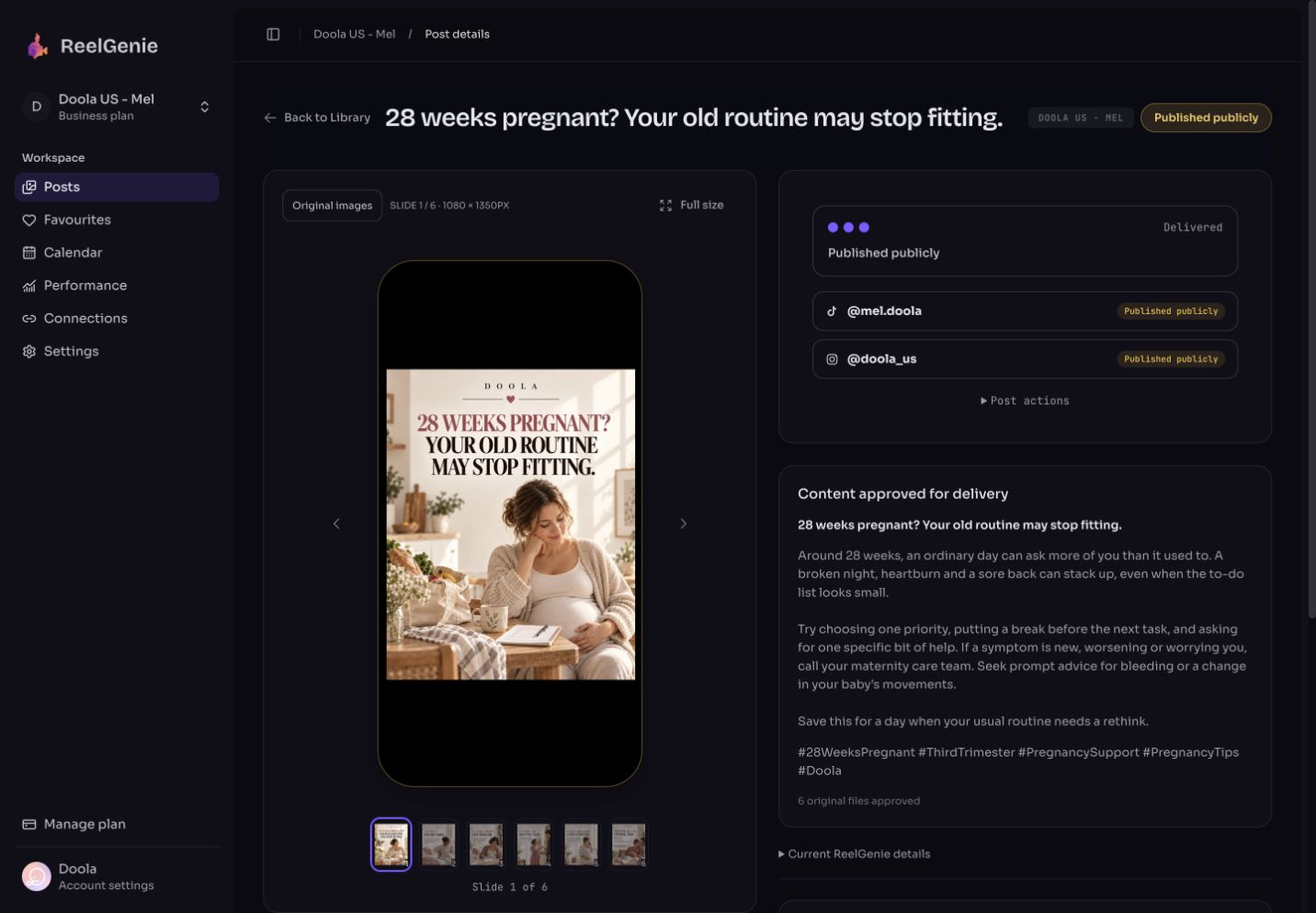
Saving a post never sends it. ReelGenie returns a review link where you see the exact files in a phone frame, in order, with the full caption. If something is wrong, ask Cursor to fix the caption or replace one image while the post is still in review.
Your agent can ask for approval. Only a person can give it, in ReelGenie or in the chat.
- In the chat: Cursor calls
check_post_deliveryto run the checks first, then asks you one yes-or-no question that names the post, the accounts and the time. Only after your clear yes does it callapprove_post. - In ReelGenie: Cursor calls
request_publish_approval, which prepares the request without approving or sending anything, and you approve on the review page.
Either way you approve every post before it goes live: the post, the account, the time and any platform options such as Instagram feed or Story, or YouTube public, unlisted or private.
Schedule this to my Instagram feed and TikTok for Tuesday at 9:00 my time. Ask me before you approve.
5. Check the result
Scheduled isn’t posted. Each account shows its own result, which Cursor reads with get_finished_post:
- Scheduled: delivery is planned and nothing has been sent yet.
- Draft ready: for most TikTok accounts, the post waits in your TikTok inbox. Open TikTok, add a sound and post. Direct Post is used only where TikTok allows it for the account.
- Published: the platform reports the post as live, with its link.
- Failed: the platform’s reason in plain words.
diagnose_publish_failureexplains what to fix.
Did my post go out on every account? If anything failed, tell me why and what to do.
If a scheduled post didn’t go out, here is how to check.
What it can’t do
- It posts only to TikTok, Instagram and YouTube.
- It can’t sign in to your social accounts. You connect them on ReelGenie’s Accounts page.
- ReelGenie doesn’t make photos or video. Use the slide tool, your own files or another tool.
- It won’t send anything that hasn’t been approved by a person.
- It can’t post to a personal Instagram account. Instagram allows professional accounts only.
- It can’t turn on TikTok Direct Post or make a video a YouTube Short. TikTok and YouTube decide those.
The free plan covers 30 posts a month across your team, 1 brand and 3 connected accounts. A post sent to several accounts counts once, and posts saved for review don’t count. Solo is US$19/month for unlimited posts. Compare plans.
Questions about posting from Cursor
- Is there a Cursor MCP server for social media?
- Yes. ReelGenie is a hosted MCP server at https://reelgenie.app/api/mcp/agent that Cursor can use to post to TikTok, Instagram and YouTube. Add it to .cursor/mcp.json and sign in.
- Do I need an API key or token?
- No. Cursor signs in to ReelGenie with your account. A revocable token from the Agents page is only for scripts or agents that can’t sign in.
- Cursor asks me before it runs a tool. Is that the approval?
- No. Cursor asks before it uses MCP tools by default, and that only lets the tool run. Saving a post keeps it private. Nothing is sent until you approve the exact post, account and time, in ReelGenie or in the chat.
- Can Cursor publish without me?
- No. Your agent can ask for approval. Only a person can give it, in ReelGenie or in the chat.
- Does it make the images or video?
- ReelGenie lays out text slides with create_slide_post. For anything else, bring finished images or an MP4 and Cursor uploads them as they are.
- Is it free?
- Yes, on ReelGenie’s forever-free plan: 30 posts a month, 1 brand and 3 connected accounts, with no card. Solo is US$19/month for unlimited posts. Your Cursor plan is separate.