 ReelGenie
How Codex can post to YouTube Shorts
Codex can’t post to YouTube Shorts by itself, because it has no YouTube sign-in or upload connection of its own. Connect it to ReelGenie with one command and Codex sends your finished vertical MP4 from your computer as a private post. You choose public, unlisted or private, approve the channel and time, and ReelGenie uploads it.
Your first Short is free to send. Connect Codex, link your channel and save one video for review, or look at a sample post first with nothing to install.
ReelGenie is free for 30 posts a month and 1 brand, with no card. Solo costs US$19/month. OpenAI bills your Codex plan on its own.
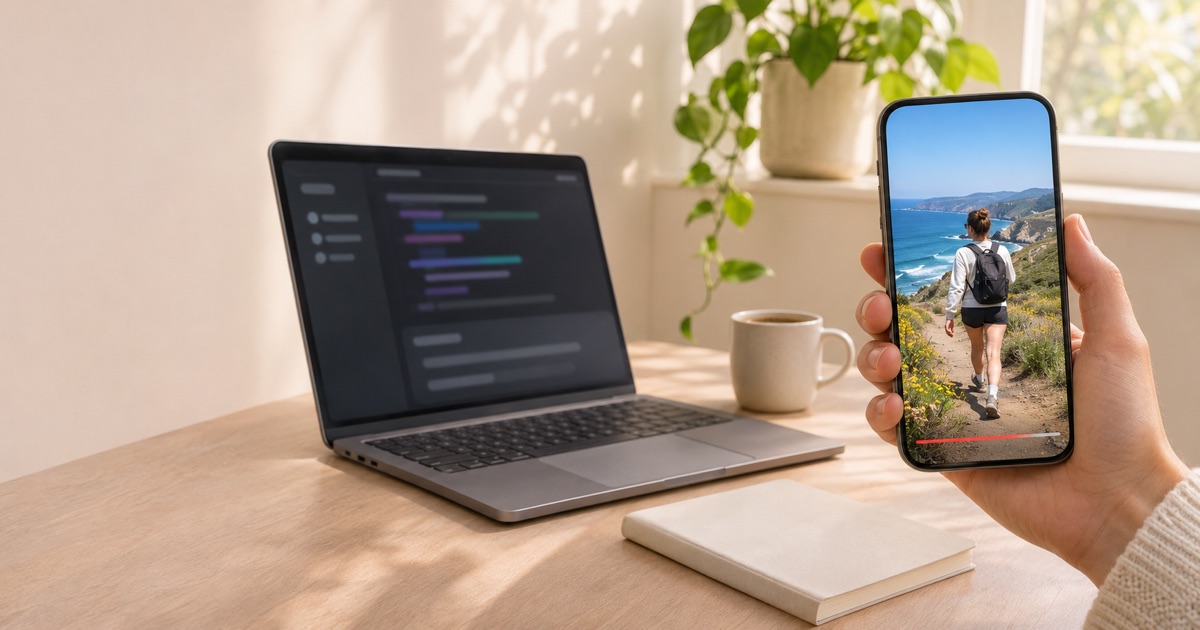
This guide is for a Short that already exists as a file: you shot it, cut it in an editor or exported it from a video tool. Codex handles the dull part. It checks the file, writes the title and description, sends the exact MP4 to ReelGenie and asks you before anything goes to YouTube. Afterwards it reads back what YouTube said.
The short answer
- Make a workspace token on ReelGenie’s Agents page and add ReelGenie to Codex with
codex mcp add. - Sign in to Google on ReelGenie’s Accounts page to link your YouTube channel.
- Point Codex at the finished vertical MP4 and let it draft the title and description.
- Codex sends the file; you play it on the review link.
- Pick public, unlisted or private, “made for kids” and paid product placement, then say yes to the channel and time.
- Ask Codex for the result: Live with a link, or Failed with YouTube’s reason.
Can Codex upload to YouTube on its own?
Not through an API. Uploading with YouTube’s API needs an app with a Google Cloud project and a signed-in channel, and Codex has neither. There are three ways around that:
- Your own script. Codex can write an uploader that calls the YouTube Data API, but you set up the Cloud project, the sign-in screen, the stored tokens and the daily upload allowance yourself.
- Record & Replay. On a Mac, Codex can watch you do a task once and turn it into a skill it repeats with Computer Use. OpenAI’s page lists publishing a video as an example. It clicks through YouTube Studio as you would, so it needs your Mac awake and signed in, and it can break when the screen changes.
- A posting service Codex connects to. Codex hands the file to a service that already holds a YouTube connection, such as ReelGenie. This guide covers that route.
With ReelGenie, Codex never holds your Google sign-in. It holds a workspace token that a team admin can take back at any time.
What counts as a YouTube Short?
YouTube decides, not the app that uploads. Its help page on three-minute Shorts says a square or vertical video up to three minutes long, uploaded after 15 October 2024, is treated as a Short. A wider video, such as 16:9, stays a regular video.
- Shape: vertical, such as 1080 × 1920 (9:16), or square.
- Length: three minutes or less.
- Music: YouTube blocks a Short longer than one minute while it has an active copyright claim, so keep claimed music to clips under a minute.
- File for ReelGenie: an MP4 up to 500 MB, sent as it is. ReelGenie doesn’t trim, crop or re-encode it.
1. Connect Codex to ReelGenie
Make a free ReelGenie account. Then a team admin creates a token for your workspace on the Agents page. Publishing is a separate box there: leave it off and Codex can only save posts, so every approval happens in ReelGenie.
Store the token in REELGENIE_MCP_TOKEN so it stays out of the chat, and run:
codex mcp add reelgenie --url https://reelgenie.app/api/mcp --bearer-token-env-var REELGENIE_MCP_TOKENThe Codex app, CLI and IDE extension read the same setting. The Codex setup page has a prompt that walks you through it instead.
Check the ReelGenie connection and list my workspaces and any YouTube channel you can see.
2. Connect your YouTube channel
Codex can’t sign in to Google for you. On ReelGenie’s Accounts page, choose YouTube and sign in with the Google account that owns the channel. You don’t need a Google Cloud project or an API key of your own. If the same video should also go out as a TikTok or an Instagram Reel, connect those accounts there too.
3. Get the Short ready in Codex
Bring the finished video from your phone, an editor or a video tool. Codex doesn’t make video itself, but it can look at the file in your project folder before anything leaves your computer, and write the words that go with it.
Look at shorts/monday.mp4. Tell me its size, length and shape, warn me if it isn’t vertical or runs past three minutes, and draft a title under 70 characters and a two-line description. Don’t send anything yet.
- Title: YouTube allows 100 characters. ReelGenie warns before approval if a title is longer and shortens it to 100 when it uploads.
- Description: up to 5,000 characters, hashtags included. ReelGenie won’t let you approve a longer one.
4. Send the MP4 and watch it
Codex asks ReelGenie for a private upload address, sends the MP4 from your disk and then asks ReelGenie to check it. The check covers the file type, size and fingerprint, so the video in the preview is byte for byte what YouTube receives.
Save shorts/monday.mp4 as a private ReelGenie post with the title and description we agreed, then give me the review link. Nothing goes to YouTube yet.
Open the link and play the Short in the phone frame. You can change the title or description in Codex or in ReelGenie; the video file stays the same.
From a Codex folder to your channel
- 1Codex checks the MP4 and writes the title and description.
- 2It saves the video privately in ReelGenie. Saving is not posting.
- 3You play it and approve the channel, visibility and time.
- 4YouTube answers: Live with a link to the Short, or Failed with the reason.
 ▷ 1M
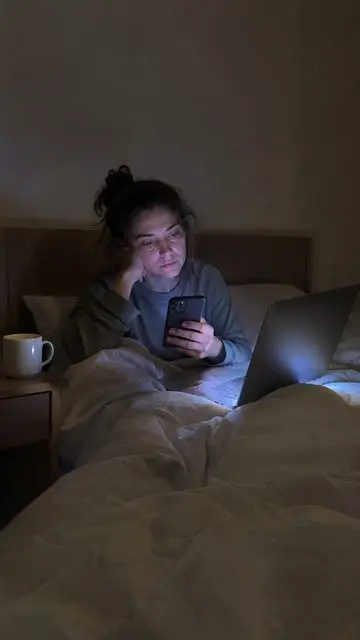 3 MISTAKES
3 things ruining your sleep (you do #2 every night)
A · The mistakes
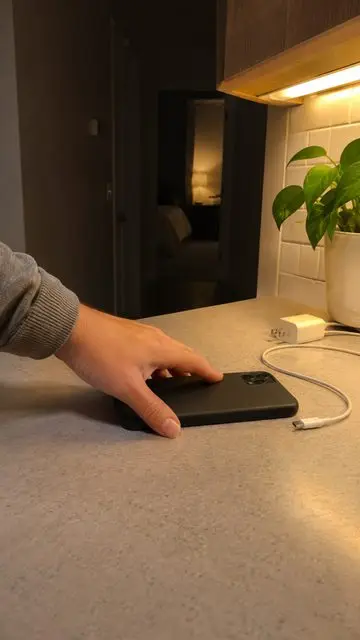 7-DAY TEST
I banned my phone from the bedroom for 7 days
B · A 7-day test
 1 HABIT
the 1 habit that stopped my 3am wake-ups
C · One habit
7-DAY TESTno phone in the bedroom for 7 days
 7-DAY TEST
lights out at 10pm for 7 days
 7-DAY TEST
no coffee after 2pm for 7 days
 7-DAY TEST
morning sun for 7 days
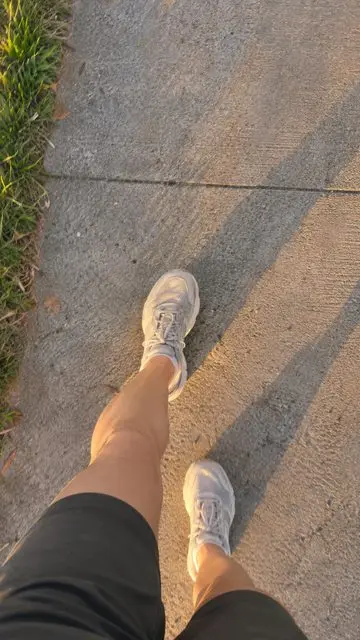 7-DAY TEST
a walk every evening for 7 days
7-DAY TESTno phone in the bedroom for 7 days
7-DAY TESTno phone in the bedroom for 7 days
7-DAY TESTno phone in the bedroom for 7 days
The creator, app and numbers in this example are made up. Here the video also goes to Instagram and TikTok; yours goes only to the accounts you approve.
Have a Short sitting in a folder? Connect Codex free and save it for review. YouTube gets nothing until you say yes.
5. Pick the visibility and approve
Codex asks rather than guessing:
- Visibility: public, unlisted or private. Unlisted is a safe first try: the Short uploads, and only people with the link see it.
- Made for kids: yes or no, or leave it to your channel’s default.
- Paid product placement: stays off unless you tell Codex the Short has one. Either way, YouTube always gets an answer from ReelGenie.
- When: now, or a date and time with its time zone.
Codex reads the choices back so you approve every post before it goes live. If its token can’t approve, you finish in ReelGenie.
Upload this to my YouTube channel as unlisted, not made for kids, on Thursday at 7:00 pm New York time. Read the details back to me before you approve.
Before approval, ReelGenie checks the post. It warns if the Google sign-in will lapse before the scheduled time, or if the day’s YouTube upload allowance, or your team’s share of it, has run out. A scheduled Short goes out from ReelGenie at its time, so Codex doesn’t need to be open.
6. Check whether it actually posted
A time on the calendar isn’t a Short on your channel. The YouTube account gets its own result:
- Scheduled: waiting for its time.
- Sending: ReelGenie is uploading the MP4.
- Live: YouTube reports the upload with the visibility you chose, with a link. Unlisted and private uploads read Live too.
- Failed: YouTube’s reason in plain words. A used-up upload allowance isn’t retried by itself; the message says when to try again.
Did my Monday Short reach YouTube? Give me the result and the link, or YouTube’s reason if it failed.
If YouTube gives no clear answer, the result says Outcome unknown and nothing is resent, so you never get the same Short twice. Here’s what to check.
Other ways to post Shorts from Codex
Several posting services publish their own Codex and YouTube guides. Here is how they compare with ReelGenie on what their pages say, read on 19 November 2026.
| Service | How Codex connects | Before a Short goes out | Makes clips? |
|---|---|---|---|
| ClipSpeed | An MCP server with a sign-in, or an API key | Its page says Codex shows the plan and asks first | Yes, from longer videos |
| Postiz | A skill with its command-line tool, or an MCP server | Follows your Codex approval settings; its page asks you to keep a person in the loop | No |
| SendShort | An MCP server with a sign-in, or an API key | Not stated on the page | Yes, from longer videos |
| ReelGenie | An MCP server with a workspace token | A person approves the exact video, channel, visibility and time, every time | No; it sends finished videos |
If your raw material is a long video that still needs cutting, a clip maker does that job; ReelGenie starts once the Short is finished. For a wider look, see ReelGenie vs Postiz and social media tools for AI agents.
What Codex can’t do here
- It doesn’t make or edit the video. Bring a finished MP4.
- It can’t sign in to Google or YouTube for you.
- It can’t make its own token; a team admin does that on the Agents page.
- It uploads nothing you haven’t approved: the video, the channel, the visibility and the time.
- It can’t add a Short to a playlist or set a custom thumbnail yet. Do both in YouTube Studio.
Free covers 30 posts a month for your team, 1 brand and 3 connected accounts, and posts saved for review don’t count. One Short sent to YouTube, TikTok and Instagram counts once. Compare plans.
Questions about Codex and YouTube Shorts
- Can Codex post to YouTube Shorts?
- Not by itself. Connected to ReelGenie, Codex sends your finished vertical MP4 as a private post, and ReelGenie uploads it to your channel after a person approves the visibility, channel and time.
- Can Codex make the Short for me?
- Codex can write the script, the opening line and the title. The video itself comes from your camera, an editor or a video tool. ReelGenie doesn’t make or edit video either.
- Does this need my own Google Cloud project or YouTube API key?
- No. You sign in with Google on ReelGenie’s Accounts page, and ReelGenie uploads through its own YouTube connection and daily allowance.
- How long can a Short be?
- Up to three minutes, vertical or square, by YouTube’s rules for uploads since 15 October 2024. ReelGenie sends the MP4 unchanged, so YouTube decides whether it is a Short.
- Can I upload a Short as unlisted or private first?
- Yes. Pick public, unlisted or private before approving. Unlisted lets you check the Short on YouTube before sharing the link.
- Can Codex schedule YouTube Shorts?
- Yes. Approve the post with a date, time and time zone. ReelGenie sends it at that time, even if Codex is closed.
- Can Codex post without asking me?
- Only if you allow it. A token without publishing can only save posts, and you approve in ReelGenie. A token with publishing still has Codex confirm the details with you before it approves.
- Can the same video go to TikTok and Instagram Reels?
- Yes. One post can go to YouTube, TikTok and an Instagram professional account, and it counts once on your plan. TikTok gets it as an inbox draft that you post from the TikTok app; ReelGenie doesn’t offer Direct Post yet.
- Is it free?
- ReelGenie is free for 30 posts a month, 1 brand and 3 connected accounts. Solo, at US$19 a month, removes the post limit. OpenAI charges for Codex as part of your ChatGPT plan.
Send your next Short from Codex
One command connects Codex. Save a finished MP4, watch it in the phone preview and approve it when it looks right.