 ReelGenie
How to automate TikTok slideshows with Claude Code
ReelGenie’s forever-free plan includes 30 posts a month and 1 brand. Solo is US$19/month. Your Claude plan is separate.
Here is a weekly routine that takes about half an hour. Claude Code plans a week of TikTok slideshows, makes the slides, saves each one for review and lines them up in your posting times. You read them, approve each one and, on most accounts, finish each draft in TikTok with a sound. “Automated” here means Claude Code does the preparing and the scheduling. It doesn’t mean posting without you: you approve every post before it goes live.
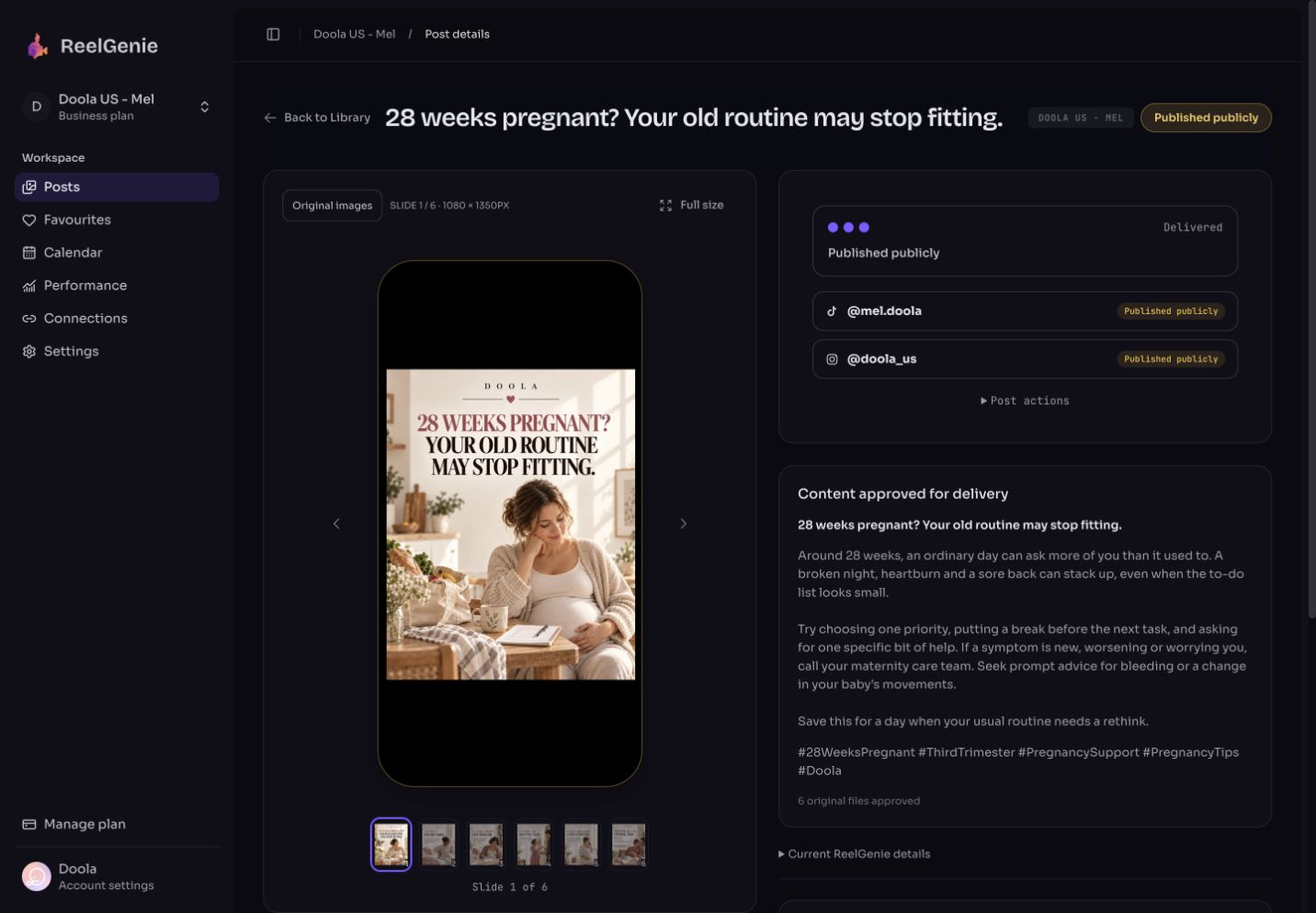
The short answer
- Install the ReelGenie plugin in Claude Code and sign in with
/mcp. - Connect your TikTok account in ReelGenie and set its weekly posting times.
- Once a week, ask Claude Code to plan the week’s slideshows and write the hooks.
- Claude Code makes the slides: images it renders, or words on ReelGenie’s plain text slides.
- It saves each slideshow as a private post and gives you the review links.
- You approve each slideshow into a posting time. Nothing is sent before that.
- When TikTok says “Draft ready”, open TikTok, add a sound and post.
What “automated” means here
Most TikTok slideshow automation tutorials build a pipeline that writes, draws and posts on its own. This routine is different on purpose. Claude Code does the repetitive work, and the decision to post stays with you.
- Claude Code does: the ideas and hooks, the slide text, the slides themselves, the captions and hashtags, the uploads, and picking each post’s next free posting time.
- ReelGenie does: keeps each slideshow private until you approve it, sends it to TikTok at the approved time and tells you what TikTok did with it.
- You do: read each slideshow, approve it, and finish TikTok drafts in the app.
ReelGenie doesn’t generate images. Claude Code, or the image tools you already use, make the slides.
1. Install the ReelGenie plugin
Create a free ReelGenie account first. Then, in a terminal where Claude Code runs, install the ReelGenie plugin. It adds the ReelGenie skill and the connection to https://reelgenie.app/api/mcp/agent.
claude plugin marketplace add lidemin/reelgenie-claude-plugin
claude plugin install reelgenie@reelgenie
Start Claude Code, type /mcp, choose plugin:reelgenie:reelgenie and sign in. A ReelGenie page lists what Claude can do, including publishing after your explicit approval.
Check that the ReelGenie connection works and list my workspaces and connected social accounts.
2. Connect TikTok and set your posting times
Claude Code can’t sign in to TikTok for you. Open ReelGenie’s Accounts page, choose TikTok and sign in there. The account card shows whether ReelGenie can send drafts to your TikTok inbox, post directly, or both.
On the same page, give the account its weekly posting times, for example Monday, Wednesday and Friday at 18:00. Claude Code reads these and puts each slideshow in the next free one, so you don’t type dates for every post.
3. Plan the week
Start with ideas, not slides. Claude Code reads your workspace’s brand brief and your recent results, so the plan builds on what you already posted.
Plan three TikTok slideshows for this week about [topic], for [who they’re for]. Read my brand brief and my last two weeks of TikTok results first. For each one give me the first-slide hook, five or six slide lines and why it fits. Don’t make anything yet.
Push back here. Ask for different hooks, drop one that sounds like an ad, or swap the order. It’s faster to change a line of text now than a finished slide later.
4. Batch the slides
Once you like the plan, Claude Code makes all three in one go. There are two ways, and it can use either:
- Slides it renders: Claude Code designs each slide in HTML on your computer, with your photos or screenshots, and renders it to an image. The text stays sharp and spelled as you approved. TikTok needs JPEG or WebP, with the short side at most 1080 pixels and the long side at most 1920; PNG can’t go to TikTok.
- Words on plain slides: if the slideshow is just text, Claude Code can use ReelGenie’s
create_slide_post. It lays your words on simple text-slide layouts (a hook slide, a list, a quote, a closing slide) in your brand colours, and saves them as JPEGs TikTok accepts. It doesn’t draw pictures.
Make the three slideshows we agreed. Use 1080 × 1920 JPEG slides with my brand colours and keep the text clear of TikTok’s buttons and caption. Show me the first slide of each before you render the rest.
5. Save them for review
Claude Code uploads each slide straight from your computer. ReelGenie checks every file’s size, format, pixels and order, so the review shows exactly what TikTok will receive. Saving never sends anything.
Save each slideshow as its own private ReelGenie post with its caption and hashtags. Use my saved hashtag sets where they fit. Check the files match, then give me the three review links. Don’t schedule or send anything yet.
Open each link on your phone. Read every slide and the full caption, and ask Claude Code to fix anything that’s wrong. A fixed slide replaces the old one in the same post.
6. Approve each slot
Now line the slideshows up. Claude Code reads your TikTok account’s next free posting times and shows you which slideshow goes where. You approve each one. Approving three slideshows means three approvals, even in one sitting.
Put these three slideshows in my TikTok account’s next free posting times, as inbox drafts. List each slideshow’s title, first slide and time, run the delivery checks, and wait for my approval on each one.
Claude Code repeats the account, time and delivery type back before it approves anything. You can also approve each one in ReelGenie instead. Before approval, ReelGenie warns you if the TikTok sign-in won’t last until that time or if the day’s posting limit is already used.
Draft ready or Direct Post?
TikTok decides which of these an app may use for your account. ReelGenie shows both honestly.
- Draft (most accounts today): at the scheduled time ReelGenie sends the slideshow to your TikTok inbox and the result reads Draft ready. That isn’t published yet. Open TikTok, add a sound, edit if you like and post. TikTok holds at most 5 waiting drafts per account, so finish each one before the next arrives.
- Direct Post: available only when TikTok has enabled it for your account. You choose who can view the post (there is no default), whether to allow comments, Duet and Stitch (each off unless you turn it on), whether it promotes a brand, and whether to add TikTok’s AI-generated label.
Apps can’t add sounds through TikTok, so the draft is also where you pick a trending sound.
7. Check what actually posted
Scheduled isn’t posted. Each account shows its own result: Scheduled, Draft ready, Published or Failed with TikTok’s reason in plain words. A daily limit isn’t retried automatically; the message says when to send again.
What happened to this week’s TikTok slideshows? For each one, tell me whether it actually posted, is waiting as a draft or failed, and what I need to do.
Next week, start by asking how each slideshow did against your account’s usual results. Treat that as a hint for the next plan, not proof of what works.
Reuse the routine every week
Keep the steps in one file so the weekly session starts with one line. In Claude Code, a Markdown file in your project’s .claude/commands/ folder becomes a command you can type. For example, save this as .claude/commands/tiktok-week.md and run /tiktok-week:
Plan this week's TikTok slideshows for my workspace.
1. Read my brand brief and last week's TikTok results.
2. Suggest three slideshows: hook, slide lines, why it fits. Wait for my picks.
3. Make the slides I pick as 1080 x 1920 JPEGs. Show me the first slides.
4. Save each one as a private ReelGenie post and give me the review links.
5. Put them in my TikTok account's next free posting times as inbox drafts.
   Run the delivery checks and wait for my approval on each one.
The command doesn’t run by itself. You start it, you read what it made, and you approve each slideshow.
What stays with you
- Approval. Every slideshow waits for its own approval. There is no setting that posts a week of slideshows without one.
- Finishing drafts. On most accounts TikTok receives a draft, and only you can post it from the TikTok app. Plan a minute per slideshow on posting days.
- The images. ReelGenie doesn’t generate images or video. Claude Code renders slides from HTML or uses the plain text slides; photographs come from you or your own tools.
- Sign-ins. Claude Code can’t sign in to TikTok or turn on Direct Post. TikTok decides that for each account.
- Results. ReelGenie reports what TikTok did with each post. It can’t promise views or tell you why a post did well.
- Your plan. The free plan covers 30 posts a month across your team, 1 brand and 3 connected accounts; that’s a daily slideshow for most of a month. Drafts saved for review don’t count. Solo is US$19/month for unlimited posts. Compare plans.
Questions about automating TikTok slideshows
- Can Claude Code make TikTok slideshows?
- Yes. Claude Code can write the hooks and slide text, design each slide in HTML and render it to JPEG on your computer. If the slides are only words, it can use ReelGenie’s plain text-slide layouts instead. It doesn’t generate photographs; bring your own or connect an image tool.
- Can Claude Code post to TikTok automatically?
- It can schedule slideshows to TikTok through ReelGenie, but only after you approve each one. On most accounts TikTok then receives a draft in your inbox, and you post it from the TikTok app. Direct Post is available only where TikTok has enabled it for your account.
- Does ReelGenie make the slides?
- No. ReelGenie doesn’t generate images or video. It keeps the slides Claude Code made private for review, sends them to TikTok after you approve, and reports what happened.
- Can I schedule a week of TikTok slideshows at once?
- Yes. Claude Code can save a week of slideshows in one session and put each one in your account’s next free posting time. You still approve each slideshow, and TikTok holds at most 5 waiting drafts per account, so finish drafts as they arrive.
- Can I add a trending sound?
- Not through ReelGenie or Claude Code. TikTok doesn’t let apps add sounds. Inbox drafts are where you pick the sound before you post.
- Do I need n8n, an API key or my own script?
- No. The ReelGenie plugin connects Claude Code with a sign-in, and ReelGenie handles the connection to TikTok. You don’t need a TikTok developer account.
- How many slideshows can I post for free?
- The free plan includes 30 posts a month across your team, 1 brand and 3 connected accounts. One slideshow sent to TikTok counts as one post. Solo is US$19/month for unlimited posts.