 ReelGenie
How to create and schedule social posts with Claude Code
ReelGenie’s forever-free plan includes 10 posts/day and 2 workspaces. Your Claude plan is separate; Pro is optional.
Claude Code can plan a carousel, write the caption and build every slide on your computer. ReelGenie takes the finished files, keeps them private for review and sends them to Instagram, TikTok or YouTube when you approve. This guide walks through each step.
1. Connect Claude Code to ReelGenie
Create a free ReelGenie account first. Then, in a terminal where Claude Code runs, install the ReelGenie plugin. It adds the ReelGenie skill, so Claude follows the same workflow every time, and the connection to https://reelgenie.app/api/mcp/agent.
claude plugin marketplace add lidemin/reelgenie-claude-plugin
claude plugin install reelgenie@reelgenie
Start Claude Code, type /mcp, choose plugin:reelgenie:reelgenie and sign in. A ReelGenie page lists the permissions you are granting. Approve it and return to the terminal. The plugin works in every project.
Prefer not to use plugins? Paste the setup prompt from the Claude setup page instead. Claude saves the skill and adds the connection for you.
Check that the ReelGenie connection works and list my workspaces and connected social accounts.
2. Load your brand brief
Each ReelGenie workspace holds a brief: audience, account purpose, goal, product, voice and visual direction. Claude reads it before suggesting anything, so you don’t repeat yourself in every conversation.
Read the brief for [workspace]. If anything important is missing, ask me in one short question and save only what I agree to.
You can also edit the brief in ReelGenie under Settings → Workspace. Both places stay in sync.
3. Agree on the angle and hook
Ask for a few directions before anything is made. A good proposal names the angle, the exact cover hook, the phrase to emphasise and what the first slide shows. Pick one, or ask for changes.
Suggest three carousel ideas for [topic] that fit the brief. For each, give the cover hook and what the first slide shows. Recommend one.
If you want to follow a post you admire, share its link and say “use this post as a reference”. Claude saves it as a team Favourite and borrows its structure and style, not its words, images or claims.
4. Build the slides
Claude doesn’t generate photographs. For type-led carousels, the most common format for tips and explainers, it designs each slide in HTML and renders it to an image with a headless browser. The text comes out exactly as you approved it.
Build the cover and slide 2 as 1080 × 1350 JPEGs using the brief’s colours and fonts. Show me both before making the rest.
For pictures inside the slides, give Claude your own photos or connect an image tool you use. Check the cover and one interior slide first, then have Claude make the remaining slides in the same style.
- Instagram: 1080 × 1350 portrait works well for carousels.
- TikTok photos: must be JPEG or WebP, with the short side at most 1080 pixels and the long side at most 1920. PNG files can’t be sent to TikTok.
- Limits: 1–10 images, up to 8 MB each and 12 MB in total.
5. Upload the exact files for review
When you’re happy with the slides, ask Claude to save the post. It reserves a private post, uploads each file straight from your computer and asks ReelGenie to check them. ReelGenie confirms each file’s size, format, pixel dimensions and fingerprint, in slide order, before the post is ready.
Save these slides in order with the caption and hashtags as a private ReelGenie post. Check the fingerprints match, then give me the review link. Don’t schedule anything yet.
Open the link and check every slide and the full caption. If a slide is wrong, ask Claude to fix it and replace that one image while the post is still in review. Caption edits can be made in the conversation or in ReelGenie.
6. Choose accounts and schedule
Tell Claude which connected accounts should get the post, how it should be delivered and when. Claude repeats the exact accounts, delivery mode and time back to you before it approves anything.
Schedule this post to my Instagram account and as a TikTok draft for tomorrow at 9:00 Sydney time. Confirm the details with me first.
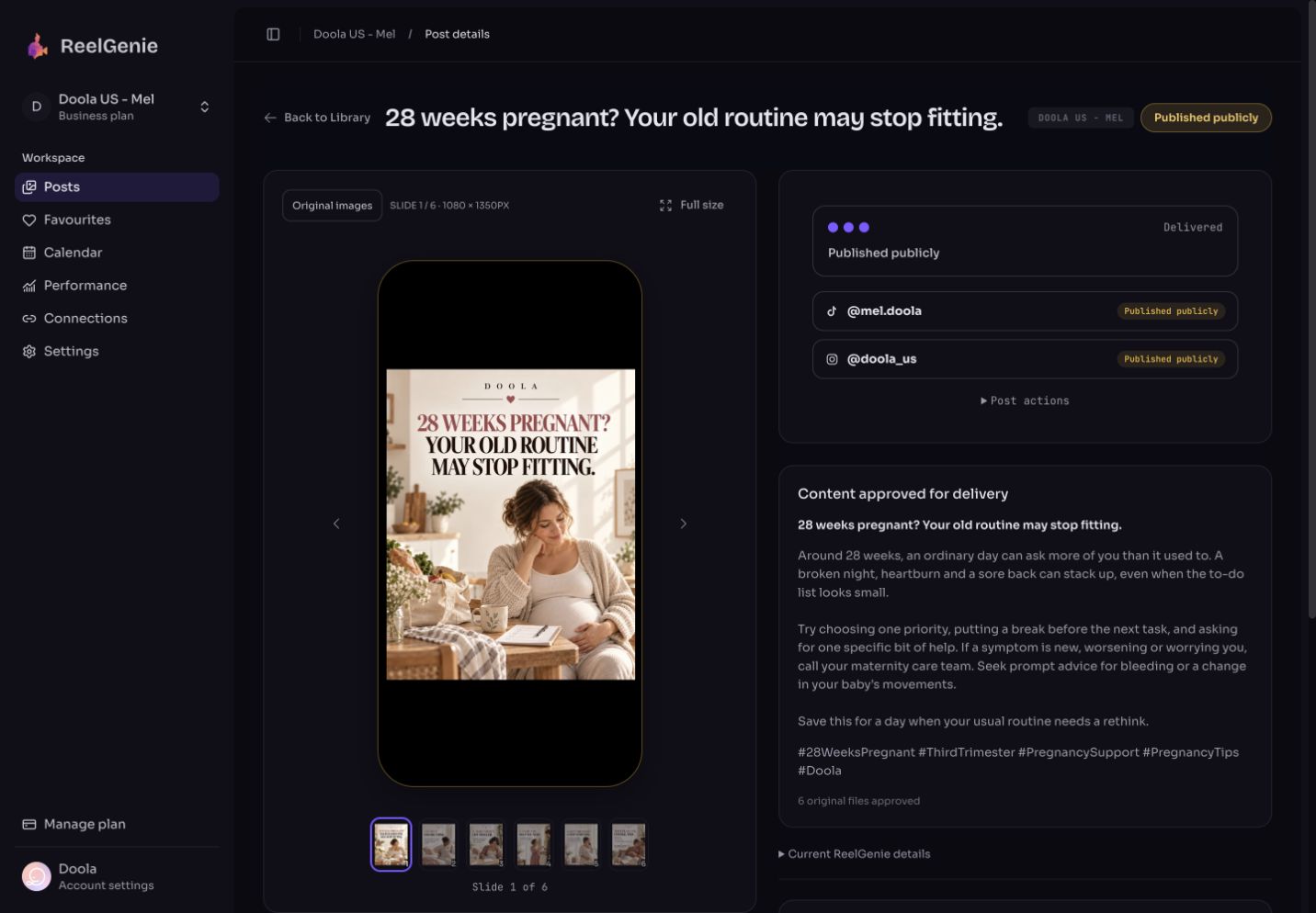
Instagram can publish directly for eligible accounts. TikTok photo posts arrive in your TikTok inbox; open TikTok to add music and publish. YouTube needs a video. Afterwards, ask Claude to check the result for each account: “scheduled”, “draft ready” or “published” mean different things.
Claude can approve delivery only if you allowed publishing when you signed in. Otherwise it asks you to approve in ReelGenie.
What Claude Code can’t do here
- It doesn’t generate photographs or video on its own. Bring your own, or connect a tool that does.
- It can’t connect your social accounts for you. You sign in to Instagram, TikTok or YouTube in ReelGenie’s Connections.
- It won’t send anything you haven’t approved: the post, the accounts, the delivery mode and the time.
- A scheduled post isn’t a published post. Check the result for each account.
The free plan covers 10 posts a day across your team and 2 workspaces. A carousel sent to several accounts counts once; drafts don’t count. Compare plans.